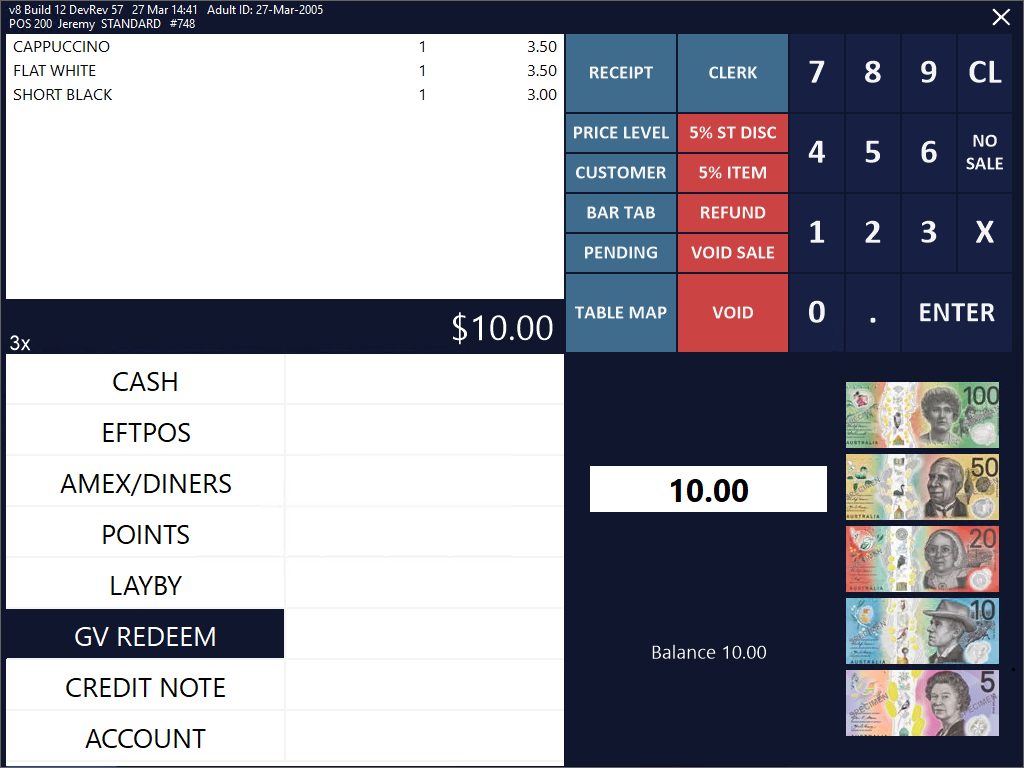
Redeeming a Gift voucher takes place at the end of the sale as a Tender Type.
Enter items into the sale and press Enter to be taken to the Tender Selection screen.
Select Gift Voucher as a Tender.
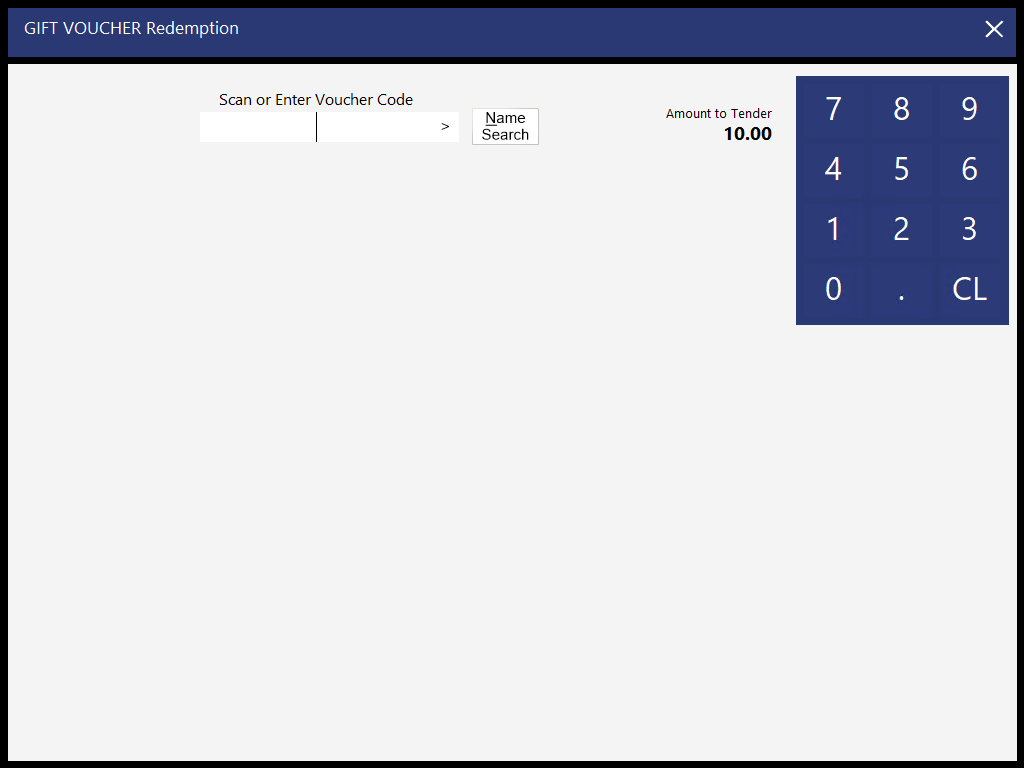
A screen will open where you scan the barcode, swipe the card or manually enter the Voucher code.
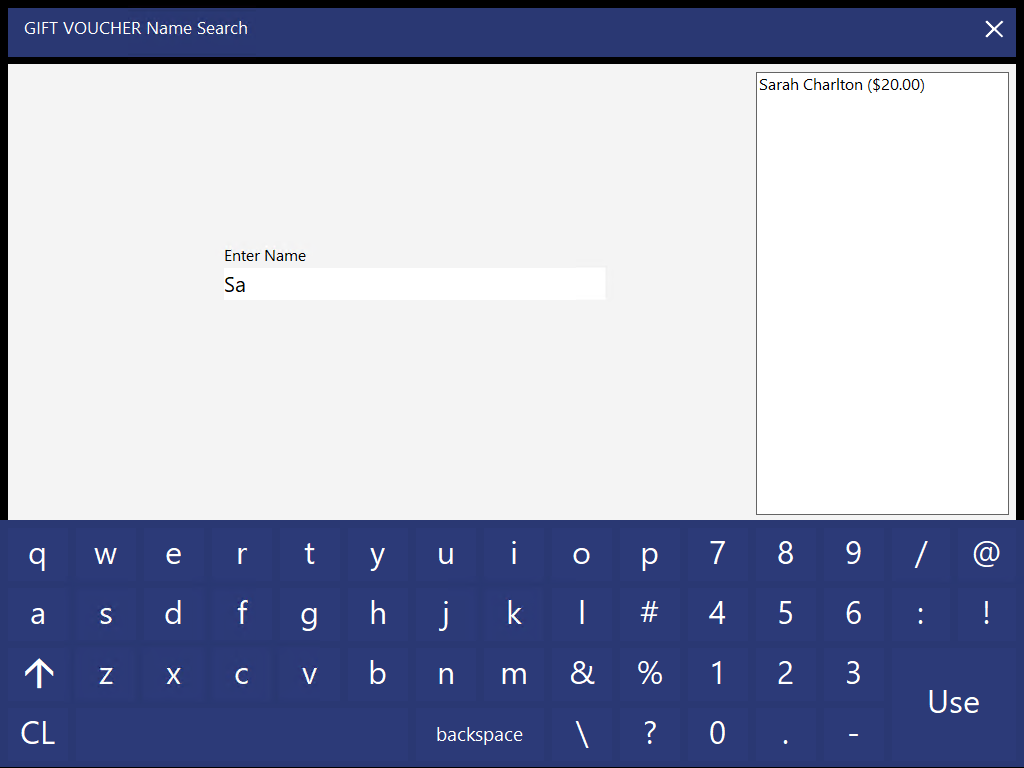
If you select to search by name, a new screen will open to allow you to search by name.
Start entering the Customers Name and any Vouchers that include that detail will start to display in the window.
Select the customer you are searching for and press Use This Name.
The Gift Voucher Redemption screen will now display the details of the voucher.
You have some choices that you can action on the voucher if you choose.
The voucher Code, Amount to Tender and current Balance will be displayed.
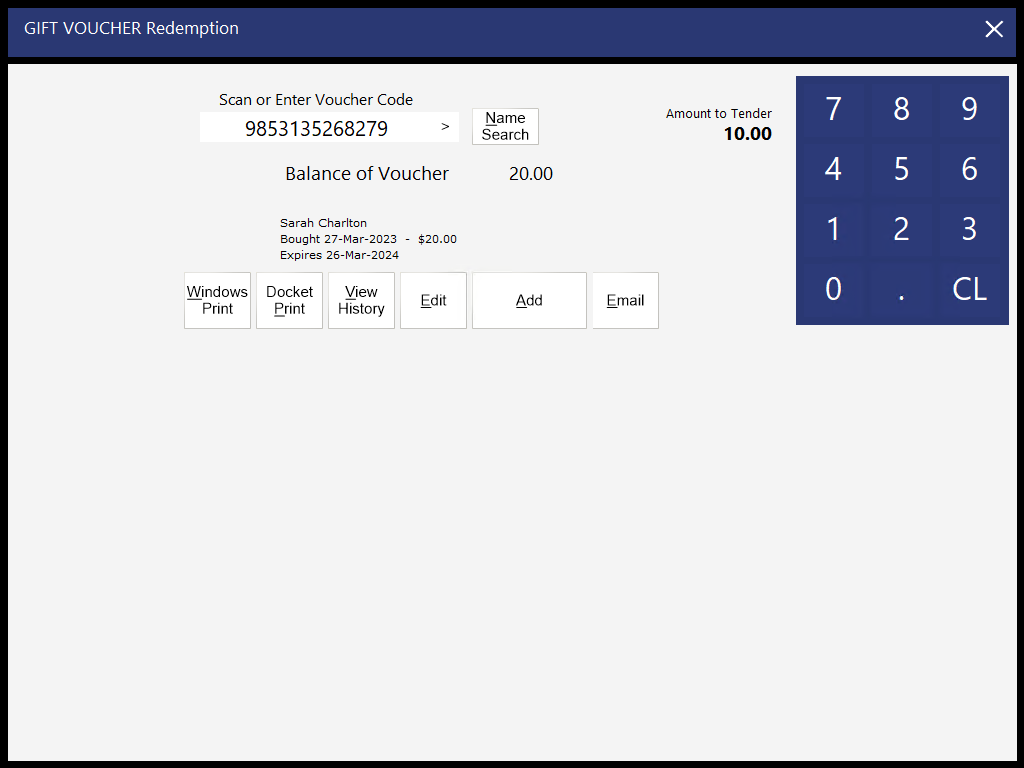
Windows Print - This button will print the voucher to the Windows Printer [that is set as the Default Printer].
Docket Print – This button will re-print the voucher to the receipt printer.
View History – This will show you all redemptions that have taken place on this voucher code. It is possible to re-issue a voucher if the entire amount of the voucher has not been fully redeemed in previous transactions.
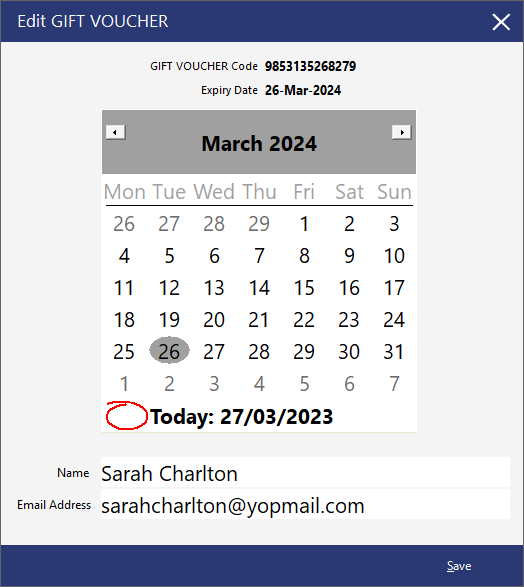
Edit – This option will open a new window where the Gift Voucher can be modified. The Gift Voucher options that can be modified include Expiry Date, Name and Email Address. Make the required changes and press 'Save'. Note that modifying the Gift Voucher will not modify the Scan Code of the already issued Gift Voucher. Also note that making any modifications to the Name and/or Email Address will not trigger the Gift Voucher to be emailed to the new Email Address. If the customer requires the Gift Voucher to be re-emailed to them after changes have been made to the Name and/or Email Address, press the 'Email' button; the Gift Voucher will be emailed to the updated Email Address and will also contain any changes that were made.
Add – This button will add the amount owing to the sale as redemption.
Email - This button will send the Gift Voucher to the customer's email address. When emailing the Gift Voucher, a confirmation prompt will be displayed containing the Email Address that the Gift Voucher will be sent to, with the ability to proceed or cancel the sending of the Gift Voucher email.
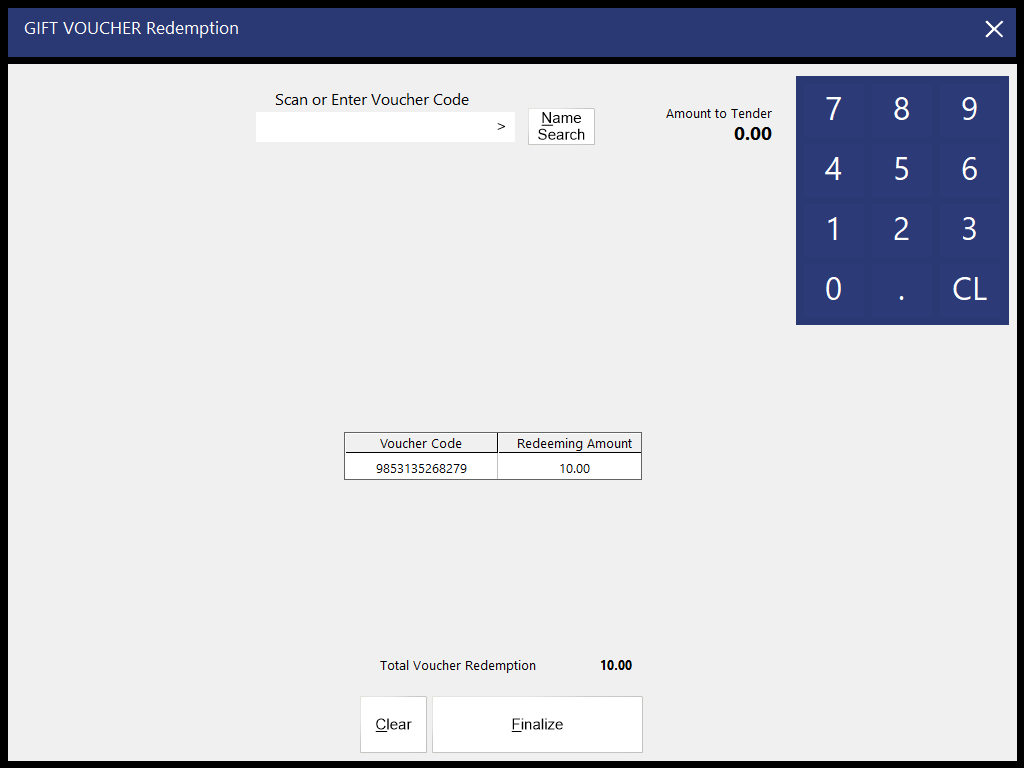
Click Finalise to total the voucher as a tender, or Clear to start again.
If you want to only charge a certain amount to the voucher tender, and not the full amount, enter the amount you want to redeem and press Gift Voucher.
If you want to add more than one voucher to the same transaction, the value of the first voucher added to the sale must be less than the total amount outstanding on the sale.
Add a voucher and click Add.
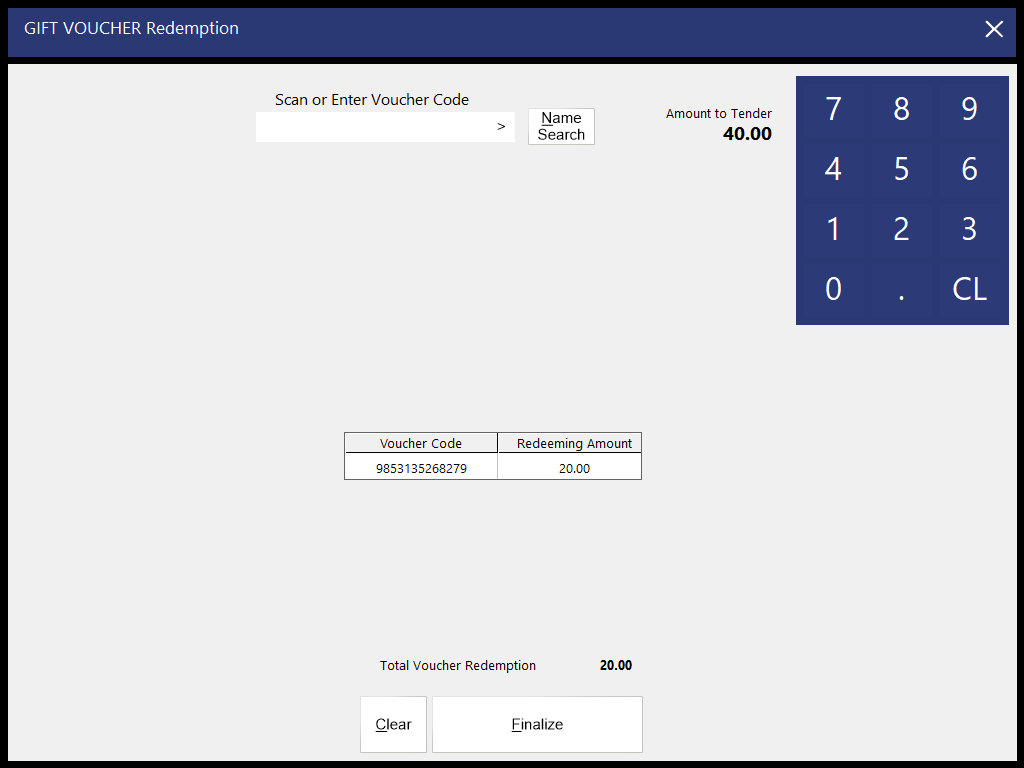
To add a second voucher, scan a barcode, swipe a card, enter a number, or select Name Search to find the second voucher.
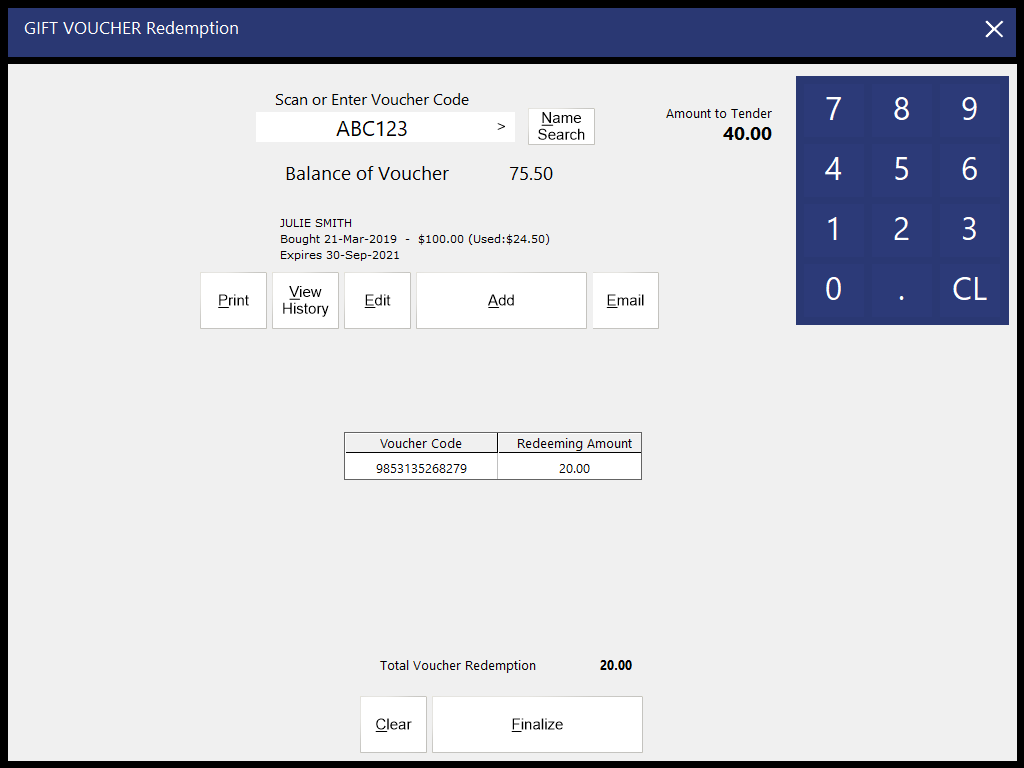
Press Add to add this voucher to the current sale.
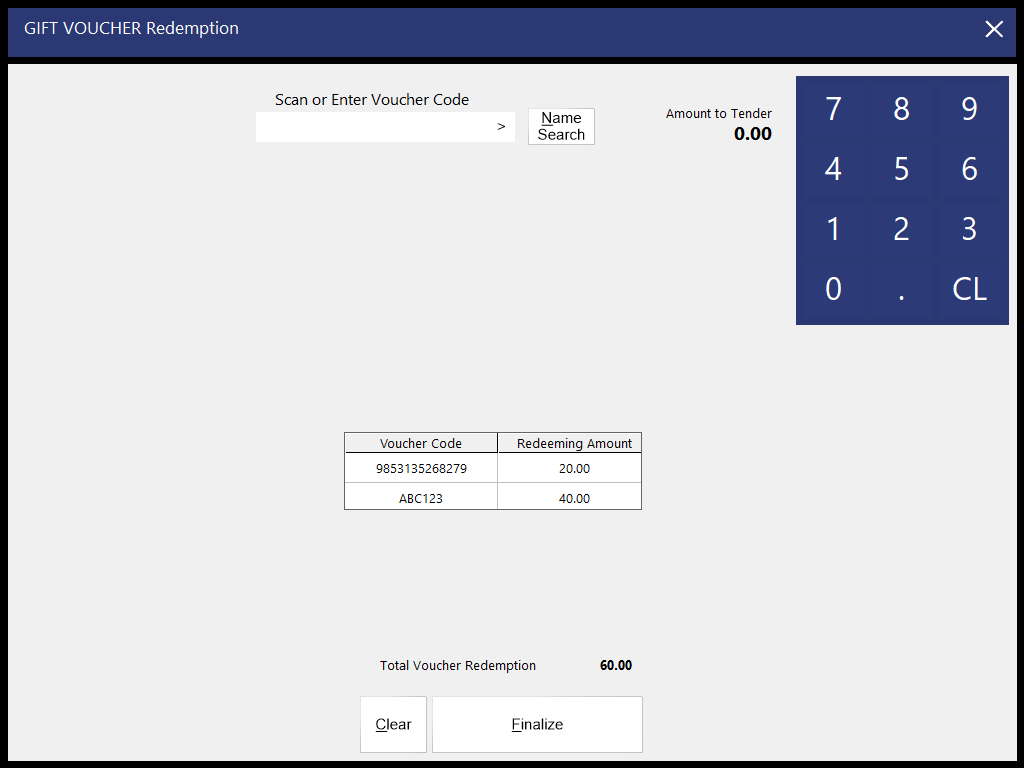
Both voucher details will be displayed along with the amount they will be redeeming.
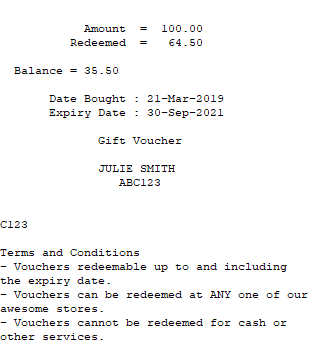
A voucher for the remaining value will be printed.
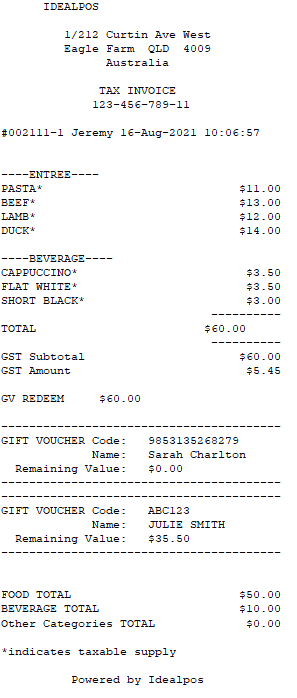
The bottom of the customer receipt will contain details of both Gift Vouchers that were redeemed in the sale.
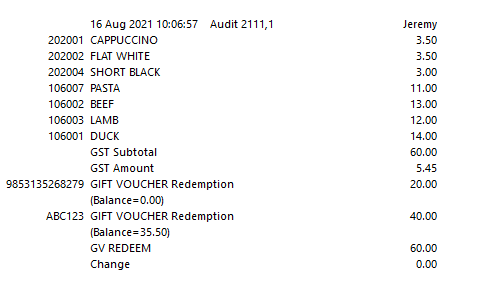
When viewing the transaction in the Journal History Enquiry (Back Office > Enquiry > Journal History), the voucher redemptions will display as 4 separate lines (each Gift Voucher redemption occupies two lines; the first line for the redemption value and the second line for the remaining Gift Voucher balance).